On this page
Accessible Name Computation: Why axe and Screen Readers Can Appear to Disagree
Why axe-core can flag an accessible-name problem even when a screen reader appears to announce the control correctly, with practical examples of AccName, ARIA, and native HTML semantics.
The problem
A developer runs an accessibility test and gets an accessible-name violation from axe-core. They open the same page with a screen reader, move to the element, and hear something that appears correct. So which result should they trust?
The answer is not that the automated tool is always right or that the screen reader is always right. The two observations come from different layers of the web accessibility stack.
A screen reader can expose something understandable to a user even when the markup contains a broken relationship or an accessibility rule violation. At the same time, an automated result cannot tell you everything about whether a person can successfully use an interface.
The useful question is therefore not:
“Why does axe disagree with my screen reader?”
It is:
“What name does the browser compute, how did it get there, what is axe checking, and what does the assistive technology actually receive?”
Once those layers are separated, the apparent contradiction becomes much easier to understand.
In short
axe-core and a screen reader are not testing the same thing. axe-core evaluates conditions through its automated rules, while a screen reader exposes the result of the browser and platform accessibility stack to the user. If the two appear to disagree, inspect the authored relationship, the computed accessible name, the accessibility tree, the automated rule, and the actual interaction before deciding which result is correct.
For an in-depth breakdown of where automated scanners stop and how to test runtime interactions, see our WCAG 2.2 AA testing guide.
One interface, several layers
A web page does not go directly from HTML to spoken output. There are several stages between the markup written by a developer and what a person hears through a screen reader.
A simplified model looks like this:
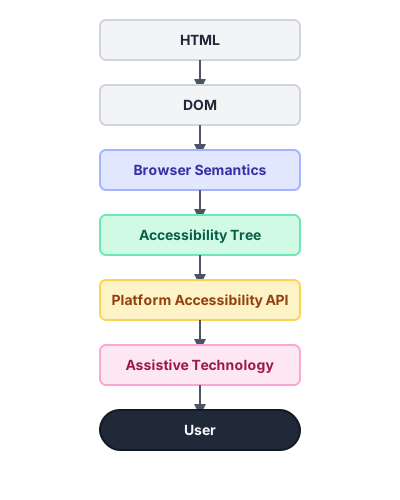
Each layer has a different responsibility.
1. HTML and the DOM
This is the markup authored by the developer. For example:
<label for="email">Email</label>
<input id="email" type="email">
The browser parses this markup into a DOM. The DOM contains the elements, attributes, relationships, text nodes, and other information from which the browser can determine the semantics of the page.
2. Browser semantics
The browser does more than display the DOM visually. It determines what elements mean and how their semantics should be exposed to assistive technologies. A native:
<button>Save</button>is not merely a rectangle containing the word “Save”. The browser exposes it as a control with a button role and an accessible name.
3. The accessibility tree
Browsers expose accessibility information through an accessibility tree. It is related to the DOM, but it is not simply a second copy of the DOM. The browser determines which objects and properties need to be exposed, including information such as:
- role
- accessible name
- accessible description
- state
- value
- relationships
For an element such as:
<button>Save</button>the accessibility representation can contain information conceptually similar to:
Role: button, Name: Save
The actual representation depends on the browser and platform.
4. Platform accessibility APIs
Browsers expose accessibility information through platform accessibility APIs, which assistive technologies use to interact with the page. The exact implementation differs between operating systems, browsers, and assistive technologies. Windows, macOS, and other platforms provide their own accessibility interfaces. The browser maps web semantics into those platform-specific interfaces.
5. Assistive technology
A screen reader such as NVDA, JAWS, VoiceOver, or TalkBack consumes information exposed through the browser and platform accessibility layers. It then presents that information to the user through speech, braille, or other output.
This distinction matters because a screen reader does not simply receive the original HTML and independently execute the accessible-name algorithm against it. The browser is responsible for determining and exposing accessibility information. Assistive technology consumes what the browser and platform make available. The W3C AccName specification describes this relationship: user agents determine accessible names and descriptions from web content, then expose those properties through accessibility APIs so assistive technologies can present them to users.
What is an accessible name?
An accessible name is the name associated with an accessible object. It gives a control or other named object an identity that assistive technologies can expose to the user.
Consider:
<button>Save changes</button>A sighted user can see the words “Save changes”.
A screen reader user needs an equivalent programmatic name for the button.
Conceptually, the browser’s accessibility representation contains:
Role: button, Name: Save changes
The name is not necessarily the same thing as visible text. For example:
<button aria-label="Close">
  <svg aria-hidden="true" viewBox="0 0 24 24"> ... </svg>
</button>
There is no visible text node saying “Close”, but the button still has an accessible name.
Likewise:
<img src="chart.png" alt="Sales increased in Q2">uses a native HTML mechanism to provide a text alternative. The important point is that different elements have different naming rules. A developer cannot assume that every element accepts every possible naming mechanism.
The role matters
Accessible-name computation is role-dependent. Some roles allow their names to come from author-provided values. Some allow names to come from their content. Some can use both. Some roles prohibit author-provided naming altogether.
The W3C specification describes three broad nameFrom possibilities:
- author — the name comes from author-provided information such as
aria-label,aria-labelledby, or a host-language mechanism; - contents — the name can come from text associated with the element;
- prohibited — the role does not allow an accessible name to be provided through those mechanisms.
That is why the common explanation:
aria-labelledby > aria-label > HTML label > text
is useful as a rough teaching shortcut but is not an accurate description of the complete algorithm.
The actual computation starts with the element and its role, then applies the applicable rules based on the W3C AccName standard.
How Accessible Name and Description Computation works
The W3C Accessible Name and Description Computation specification, usually shortened to AccName, defines how user agents determine accessible names and descriptions.
At the time of writing, AccName 1.2 is a W3C Working Draft. AccName 1.1 remains the W3C Recommendation. The 1.2 draft is work in progress and may change.
The distinction matters because a W3C Working Draft is not the same thing as a finalized Recommendation. W3C explicitly states in the 1.2 specification that the document is a work in progress and may be updated or replaced.
The computation begins with the DOM element
AccName 1.2 describes the starting point as a DOM element.
The result is a flat string.
For example:
Save
or:
Reload from disk
The element’s role determines which content can contribute to that result.
aria-labelledby
aria-labelledby can provide an accessible name by referencing one or more elements.
For example:
<button aria-labelledby="save-label">
  <svg aria-hidden="true" viewBox="0 0 24 24"> ... </svg>
</button>
<span id="save-label">Save changes</span>
The button’s name can be obtained from the referenced element.
Multiple references are possible:
<button aria-labelledby="action file"> ... </button>
<span id="action">Delete</span> <span id="file">report.pdf</span>
The resulting name can be assembled from the referenced text. The order of the ID references matters because the referenced nodes are processed in sequence. A reference must therefore point to something meaningful.
This is not equivalent to writing:
<button aria-labelledby="does-not-exist"> Delete </button>The browser’s accessible-name computation and axe’s rule evaluation may treat that markup differently from a correctly resolved relationship. That difference is precisely why inspecting the accessibility tree and the automated result together is useful.
aria-label
aria-label provides a string directly:
<button aria-label="Close">
  <svg aria-hidden="true" viewBox="0 0 24 24"> ... </svg>
</button>
The value is used when the applicable naming rules permit it.
However, aria-label should not be treated as a universal replacement for native HTML semantics.
If native HTML already provides an appropriate naming mechanism, using that mechanism is generally easier to understand and less fragile.
Native HTML mechanisms
Host-language semantics can also provide accessible names. For example:
<label for="email">Email address</label>
<input id="email" type="email">
The HTML <label> element establishes the relationship between the text and the form control.
Similarly, an image can use its native alt attribute:
<img src="chart.png" alt="Revenue increased by 18 percent">The AccName specification explicitly recognizes host-language mechanisms such as HTML <label> and alt as possible accessible names.
Name from content
Some roles can derive their names from their content. For example:
<button> Save changes </button>The text inside the button can provide its accessible name. This also explains why visually hidden text can be useful:
<button>
  <span class="visually-hidden">Close</span>
  <svg aria-hidden="true" viewBox="0 0 24 24"> ... </svg>
</button>
The SVG is hidden from the accessibility tree, while the text remains available to the name computation.
The result can therefore be:
Role: button, Name: Close
The AccName algorithm recursively processes descendants when the role permits name-from-content.
The algorithm is recursive
This is one of the most important parts to understand. Accessible-name computation is not simply: Look for one attribute and stop. The algorithm can follow references and process descendant nodes. Consider:
<button aria-labelledby="label">
  <svg aria-hidden="true" viewBox="0 0 24 24"> ... </svg>
</button>
<span id="label"> Close <strong>dialog</strong> </span>
The name computation can follow the aria-labelledby relationship and process the referenced content.
The specification describes recursive computation rules for processing referenced nodes, descendants, hidden content, and embedded controls.
This is why accessible-name bugs can become difficult to diagnose by looking only at the element itself.
The source of the final name may be somewhere else in the DOM.
Hidden content is more complicated than display: none
Developers often learn a simplified rule:
“Hidden content is invisible to assistive technology.”
That is not enough for accessible-name computation.
AccName distinguishes between different forms of hidden content.
For example, content using:
display: none;
or:
visibility: hidden;
is treated as hidden.
aria-hidden="true" also makes the node hidden for the relevant accessibility calculation.
But content positioned visually off-screen is not automatically treated as hidden by the AccName algorithm.
More importantly, content that is referenced by aria-labelledby or aria-describedby has specific traversal rules. A hidden referenced node can contribute to the accessible name in specific algorithmic circumstances.
This is one reason why “visible text versus hidden text” is too simple a model. The question is not merely: “Can the user see this node?” It is: “How does this node participate in the applicable accessibility computation?”
What axe-core is actually checking
axe-core runs automated accessibility rules against the rendered page. Its rules can inspect markup, relationships, computed properties, and other information available to its rules engine. It does not behave like a screen reader, and it does not reproduce every combination of browser, operating system, platform accessibility API, and assistive technology.
For example, the button-name rule checks whether buttons have a discernible accessible name. Deque documents several passing patterns, including button text, aria-label, and aria-labelledby. It also documents patterns that fail, including an aria-labelledby reference to a nonexistent element in their button-name rule documentation.
The important distinction is: An automated rule evaluates a condition that the rule can determine automatically. A screen reader test evaluates the resulting interface through a particular browser, operating system, accessibility API, and assistive-technology combination. Those are related, but they are not identical tests.
Axe’s own automated testing documentation distinguishes automated checks from situations that require manual review. Passing an automated rule does not establish that the entire experience is accessible, and failing an automated rule should not be interpreted as a complete description of what every assistive technology user will experience.
Why the two results can appear to disagree
Suppose you have:
<button>
  <svg aria-hidden="true" viewBox="0 0 24 24"> ... </svg>
</button>
The SVG has been explicitly removed from the accessibility tree.
There is also no text inside the button.
So there is no obvious accessible name for the button.
Axe’s button-name rule identifies this as a failure.
Now consider a different situation where the markup contains an invalid relationship, or where browser and assistive-technology behavior produces an announcement that appears meaningful.
A developer may hear: “Close, button” and conclude: “The screen reader knows what this button does, so the accessibility check must be wrong.”
That conclusion does not follow. The spoken output tells you what happened in that particular browser + operating system + assistive technology combination. It does not prove that the underlying authoring relationship is correct.
This distinction becomes especially important when the same component is used across:
- different browsers;
- different operating systems;
- different screen readers;
- different versions of those products;
- different interaction modes. A behavior that appears helpful in one environment may not be reproduced in another.
Screen reader output is evidence, not the specification
This is the most important principle in this article. Suppose a screen reader announces: “Email, edit text” That is useful evidence. It tells you that the user agent and assistive technology produced an understandable announcement in that test environment. But it does not automatically prove that this markup:
<div>Email</div>
<input type="email">
contains a valid programmatic label.
The HTML Living Standard provides the <label> element for labeling form controls.
A structurally correct implementation is:
<label for="email">Email</label>
<input id="email" type="email">
or an implicit label:
<label>
  Email
  <input type="email">
</label>
The important relationship is represented in the HTML itself. A screen reader’s successful announcement should therefore be treated as one test result, not as proof that the markup can safely remain as written.
Scenario 1: Icon-only buttons
Icon-only buttons are one of the easiest places to see why accessible names matter. Consider:
<button>
  <svg aria-hidden="true" viewBox="0 0 24 24"> ... </svg>
</button>
The SVG is explicitly hidden from assistive technology.
The button has no visible text.
It therefore has no useful name from those sources.
Axe’s button-name rule identifies this pattern as a failure.
Option 1: Use aria-label
<button aria-label="Close">
  <svg aria-hidden="true" viewBox="0 0 24 24"> ... </svg>
</button>
Now the button has an author-provided accessible name.
Conceptually:
Role: button, Name: Close
Option 2: Use text content
<button> Close </button>This is the simplest possible implementation when visible text is appropriate.
Option 3: Use visually hidden text
<button>
  <span class="visually-hidden">Close</span>
  <svg aria-hidden="true" viewBox="0 0 24 24"> ... </svg>
</button>
The visual icon remains the visible control while the text provides an accessible name. A visually hidden utility must actually hide the text visually while keeping it available to assistive technologies. A typical implementation might be:
.visually-hidden {
  position: absolute;
  width: 1px;
  height: 1px;
  padding: 0;
  margin: -1px;
  overflow: hidden;
  clip: rect(0 0 0 0);
  white-space: nowrap;
  border: 0;
}
The exact CSS technique is less important than the semantic outcome: the text remains available to the accessibility tree while not being displayed visually. Both patterns provide a name that satisfies the button-name rule, assuming the surrounding markup and implementation meet the rule’s other conditions.
Scenario 2: A broken aria-labelledby relationship
Consider:
<button aria-labelledby="close-label">
  <svg aria-hidden="true" viewBox="0 0 24 24"> ... </svg>
</button>
<span id="close-button-label">Close dialog</span>
There is a mismatch.
The button refers to: close-label
but the actual element is: close-button-label
The IDREF does not resolve to the intended element.
This is not a cosmetic problem.
aria-labelledby establishes a programmatic relationship, and that relationship needs to resolve correctly for the intended name computation to occur. If the referenced ID does not resolve, that relationship is broken. The result needs to be inspected rather than assuming that another naming source will automatically rescue the control.
Axe documents a nonexistent aria-labelledby reference as a known failing pattern for its button-name rule.
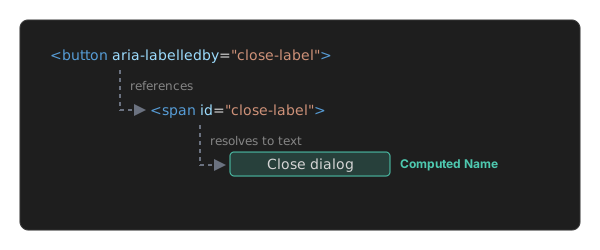
The corrected version is:
<button aria-labelledby="close-label">
  <svg aria-hidden="true" viewBox="0 0 24 24"> ... </svg>
</button>
<span id="close-label">Close dialog</span>
Now the relationship is explicit:
Scenario 3: Form controls and labels
Consider:
<div>Email</div>
<input type="email">
The text looks like a label.
Visually, a person can understand the interface.
But the <div> does not establish the same programmatic relationship as an HTML <label>.
The HTML standard defines the <label> element as the mechanism for labeling form controls. Axe’s label rule likewise checks whether form elements have an appropriate programmatic label.
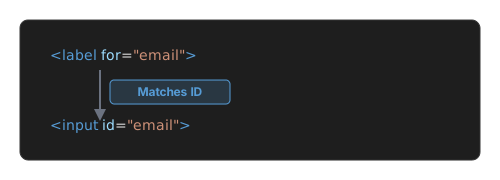
The structurally explicit version is:
<label for="email"> Email </label>
<input id="email" type="email">
The relationship is:
Implicit labeling also works HTML also allows the control to be placed inside the label:
<label>
  Email
  <input type="email">
</label>
This creates the association through the
The lesson is not:
“Never put an input inside a wrapper.”
The lesson is:
A visual relationship is not automatically a programmatic relationship.
A <div> can visually sit beside an input without becoming its label.
A better way to debug accessible-name failures
When an automated test reports an accessible-name problem, don’t immediately add:
aria-label="..."
That may silence the particular failure while leaving the underlying implementation poorly understood.
Instead, work through the layers.
Step 1: Identify the element’s role
Ask:
What is this element supposed to be?
Prefer native HTML when it already provides the required semantics.
For example:
<button>
is generally preferable to:
<div role="button">
when the control is actually a button.
Native elements provide behavior and semantics together, which is why utilizing native HTML elements often yields better accessibility out of the box than custom ARIA implementations.
Step 2: Determine where the name should come from
Ask:
Should the name come from visible text, a native HTML relationship, referenced text, or an explicit ARIA attribute?
For example:
<button>Save</button>
gets its name from content.
A form control can use:
<label for="email">Email</label> <input id="email">
An icon-only button might use:
<button aria-label="Close">
The right mechanism depends on the element and its role.
Step 3: Inspect the accessibility tree
Don’t stop at the DOM.
Use the browser’s accessibility inspection tools to determine what the browser is exposing.
Look for at least:
Role, Name, Description, State, Value.
For the example:
<button aria-label="Close">
you should expect something conceptually similar to:
Role: button, Name: Close
The accessibility tree is useful because it lets you see the result of the browser’s semantic processing rather than only the source markup.
Step 4: Run the automated check Run axe against the same page. Record:
- the rule ID;
- the element it identifies;
- the failure description;
- the suggested remediation;
- whether the result requires manual verification. Do not treat the rule as an instruction to add ARIA blindly. Understand why the rule exists first.
Step 5: Test with assistive technology Then use a screen reader. Test the actual interaction:
- Can the control be reached?
- What role is announced?
- What name is announced?
- Is the state announced?
- Is the purpose clear?
- Can the user operate it?
- Does the announcement remain understandable after the page changes? This is where automated testing stops being sufficient.
Step 6: Test more than one environment when the behavior matters If the issue is specifically about a discrepancy between the browser’s accessibility representation and assistive-technology output, test more than one combination where practical. For example:
- Windows + Chrome + NVDA
- Windows + Firefox + NVDA
- macOS + Safari + VoiceOver You do not need to test every possible combination for every component. But when a claim depends on a particular browser or screen reader behavior, the environment needs to be part of the claim. “VoiceOver announces it correctly” is incomplete without knowing: macOS version, Safari version, VoiceOver page/component state. The same applies to NVDA and other assistive technologies.
The accessibility tree is the useful middle ground
The accessibility tree is particularly valuable when debugging these problems because it sits between author markup and assistive-technology output. Consider:
<button aria-label="Close">
  <svg aria-hidden="true"> ... </svg>
</button>
The DOM contains:
- a
<button>; - an
aria-label; - an
<svg>; aria-hidden="true". The accessibility representation should expose the meaningful semantics rather than simply reproducing every DOM node. Conceptually:
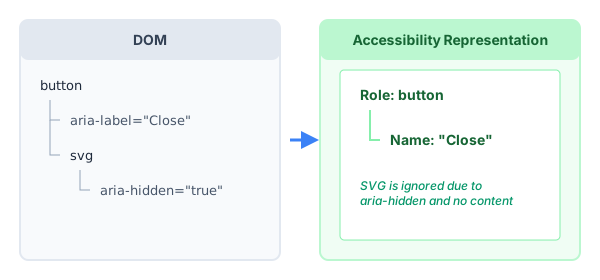
It also helps separate two different problems: Problem A The markup is incorrect and the accessibility representation is incorrect. Problem B The accessibility representation is reasonable, but a particular assistive technology presents it unexpectedly. Those require different fixes.
Don’t “fix” accessibility by silencing axe
Suppose axe reports:
button-name
The worst response is not necessarily:
“Add an aria-label.”
It is:
“Add something that makes the scanner green without understanding why the control was unnamed.”
For example, this:
<button aria-label="Button"> ... </button>may satisfy a mechanical requirement while providing a useless name. The name needs to communicate the purpose of the control. For a close button:
<button aria-label="Close dialog">is meaningful. For a search control:
<button aria-label="Search">is meaningful. The goal is not to make the automated report disappear. The goal is to give the control an accurate programmatic identity.
Native HTML should usually come first
When HTML already provides the required relationship, use it. For a form field:
<label for="email">Email address</label>
<input id="email" type="email">
For a button:
<button>Save changes</button>For an image:
<img src="chart.png" alt="Revenue increased in Q2">ARIA is valuable when native HTML cannot express the required semantics, but it should not be the first tool for every accessibility problem. The reason is simple: Native semantics already connect structure, behavior, and accessibility information. ARIA can add or modify semantics, but it does not automatically provide the behavior of a native element.
A note about aria-label versus visible text
There is another subtle problem worth checking. Consider:
<button aria-label="Close dialog"> Close </button>The visible text says:
Close
while the accessible name says:
Close dialog
That may be perfectly reasonable.
But now consider:
<button aria-label="Delete account"> Remove </button>The visible and accessible names describe different actions. This can make it harder for users to reconcile the visible control with its accessible name, particularly when speech input or other mechanisms depend on the name exposed by the interface. An accessible name should therefore not merely exist. It should accurately identify the control. When a visible label exists, the accessible name should generally preserve a meaningful relationship with that visible label rather than silently replacing it with unrelated text. This is particularly important when users operate interfaces through speech input or need to correlate what they see with what assistive technology announces.
What a passing axe result does not prove
A passing automated result is useful. It tells you that the tested rule did not identify a failure. It does not prove all of the following:
- the interface is accessible;
- the control is understandable;
- the focus order is logical;
- keyboard interaction works;
- the screen reader announces state changes correctly;
- interactive content is exposed correctly;
- error messages are understandable;
- the task can be completed;
- the experience is consistent across assistive technologies.
Axe’s automated rules are one part of an accessibility testing strategy, not a complete assessment of the user experience. Deque’s own documentation makes this distinction. The reverse is also important. A screen reader announcing a control correctly does not prove that every underlying relationship is correctly authored. Both observations are valuable. Neither is the whole picture.
A practical comparison
When you encounter an accessible-name issue, record the result in a small table.
| Layer | Question | Example |
|---|---|---|
| HTML | What did we author? | <button aria-label="Close"> |
| DOM | What relationships exist? | aria-label is present |
| Accessibility tree | What did the browser expose? | Role: button, Name: Close |
| axe | Did an automated rule fail? | button-name: pass |
| Screen reader | What does the user hear? | “Close, button” |
| Manual test | Can the user complete the task? | Yes |
Now consider a broken relationship:
| Layer | Question | Example |
|---|---|---|
| HTML | What did we author? | aria-labelledby="missing-id" |
| DOM | Does the reference resolve? | No |
| Accessibility tree | What name was computed? | Inspect |
| axe | Did an automated rule fail? | Likely failure |
| Screen reader | What is announced? | Test |
| Manual test | Can the task be completed? | Test |
This method prevents one observation from being mistaken for the entire accessibility result.
A small test page
If you want to investigate these differences yourself, use a deliberately small test page.
<!doctype html>
<html lang="en">
<head>
  <meta charset="utf-8">
  <title>Accessible Name Tests</title>
</head>
<body>
  <h1>Accessible name tests</h1>

  <h2>Unnamed button</h2>
  <button>
    <svg aria-hidden="true" viewBox="0 0 24 24"> ... </svg>
  </button>

  <h2>Button with aria-label</h2>
  <button aria-label="Close">
    <svg aria-hidden="true" viewBox="0 0 24 24"> ... </svg>
  </button>

  <h2>Button with visible text</h2>
  <button> Close </button>

  <h2>Button with visually hidden text</h2>
  <button>
    <span class="visually-hidden">Close</span>
    <svg aria-hidden="true" viewBox="0 0 24 24"> ... </svg>
  </button>

  <h2>Broken aria-labelledby</h2>
  <button aria-labelledby="missing-id"> Close </button>

  <h2>Correct aria-labelledby</h2>
  <button aria-labelledby="close-label">
    <svg aria-hidden="true" viewBox="0 0 24 24"> ... </svg>
  </button>
  <span id="close-label">Close dialog</span>

  <h2>Unassociated form label</h2>
  <div>Email</div>
  <input type="email">

  <h2>Explicit form label</h2>
  <label for="email"> Email </label>
  <input id="email" type="email">
</body>
</html>
Then inspect each example in the same order:
- Read the HTML.
- Inspect the DOM.
- Inspect the browser’s accessibility tree.
- Run axe.
- Test with a screen reader.
For each test case, record:
- Browser:
- Operating system:
- Screen reader:
- Accessibility-tree name:
- axe result:
- Screen-reader announcement:
- Keyboard result:
Record what changed between each implementation. The point is not to find a single tool that gives the “real” answer. The point is to understand how the layers interact.
What developers should take away
- A screen reader announcement is not proof of correct markup If a screen reader says: “Close, button”, that tells you something useful about the tested environment. It does not, by itself, prove that the author provided the name through the correct semantic relationship.
- An axe failure is not a complete usability assessment Axe identifies conditions that its automated rules can evaluate. Manual testing is still required.
- Accessible-name computation is role-dependent
Do not memorize:
aria-labelledby>aria-label>label> text as though it were a universal rule. The applicable role and naming rules determine what can contribute to the name. - Inspect the accessibility tree when the result is confusing If the DOM looks correct but the screen reader behaves unexpectedly, inspect what the browser actually exposes.
- Prefer native semantics
Use
<button>when you need a button. Use<label>when you need to label a form control. Use native HTML relationships before reaching for ARIA where the native element already expresses the required meaning. - Fix relationships, not scanner output Fix the underlying semantics, not the scanner output. A passing automated check is useful evidence. It is not the definition of an accessible interface. A correct semantic relationship that remains understandable and usable across the relevant interaction methods is the goal.
Conclusion
An accessible-name problem becomes much easier to understand when the different layers are kept separate.
HTML provides the structure and relationships authored by the developer. The browser interprets those semantics and constructs an accessibility representation. Platform accessibility APIs expose that information to assistive technologies, which then present it through speech, braille, or other forms of interaction. axe-core evaluates the page through its own automated rules.
These layers work together, but they do not answer the same question.
A screen reader announcing an understandable name is useful evidence about the environment you tested. It does not, by itself, prove that the underlying markup uses the correct semantic relationship. An automated failure is also useful evidence, but it does not describe every aspect of a person’s experience.
When the results disagree, don’t choose one and ignore the other.
Inspect the markup. Identify the element’s role. Determine how its accessible name should be computed. Inspect the accessibility tree. Read the automated rule. Then test the actual interaction with assistive technology.
The goal is not to make a scanner pass or to reproduce one screen reader announcement.
The goal is to establish a correct semantic relationship that remains understandable and usable across the environments that matter.
Related Reading
To dive deeper into web semantics, browser architecture, and optimizing for search and accessibility, explore these related articles:
- Document Picture-in-Picture: Breaking Out of the Browser Tab
- Declarative Shadow DOM: Architecture and Implementation
- Understanding Core Web Vitals as Ranking Factors
Frequently Asked Questions
What is an accessible name in HTML?
An accessible name is a short string of text that the browser computes for an interactive element, which assistive technologies (like screen readers) use to identify the element to the user. It is the programmatic identity of the control.
How do browsers calculate an accessible name?
Browsers use the W3C Accessible Name and Description Computation (AccName) algorithm. The computation checks the element’s role, and then recursively evaluates author-provided attributes (like aria-label), host-language semantics (like <label>), and the element’s text content.
Why does axe-core flag my button when VoiceOver reads it fine?
Axe-core evaluates your page’s strict structural compliance with accessibility standards. Screen readers, however, employ their own implementations and may announce an element correctly based on context. An automated flag means your underlying markup is semantically broken, even if a specific screen reader manages to provide a usable fallback.
Does correct screen reader output prove my HTML is accessible?
No. An understandable screen reader announcement only proves that a specific combination of browser, OS, and assistive technology produced a usable result. It does not prove that the underlying HTML semantics are correctly authored or that the experience will be the same on other screen readers.
Is aria-label better than visually hidden text?
Neither is universally better; it depends on the use case. aria-label is excellent for providing a strict programmatic name without adding DOM text nodes. Visually hidden text is often preferred when the text needs to be translated by browser translation tools, which often ignore aria-* attributes.
Can a <div> act as a form label for accessibility?
No. A <div> does not establish a programmatic relationship with a form control. Under the HTML specification, you must use a <label> element with a for attribute matching the input’s id, or implicitly wrap the input inside the <label>.
What is the difference between the DOM and the accessibility tree?
The DOM is the complete structural representation of your HTML markup. The accessibility tree is a simplified version of the DOM created by the browser, containing only the nodes, roles, properties, and states that are meaningful to assistive technologies.
From the team at
We build digital products and explore the modern web standards behind them.